The Billboard app on Apple TV
Install the app, connect it to a gallery from your dashboard, use the on-screen menu, and lock the screen down for always-on use.
Last updated 26 July 2026
The Billboard app turns an Apple TV into a live screen. Nearly everything you'll ever change lives in the dashboard, so the app itself stays simple. It shows a code, you connect it from your dashboard, and it plays. This guide covers installing it, connecting it to a gallery, the handful of on-screen controls, and locking it down for a display that stays up.
Install the app
- On the Apple TV, open the App Store.
- Search for Billboard Screen.
- Select Get to install.
Tip: Billboard Screen is free on the App Store. If searching on the Apple TV doesn't turn it up, open the listing at apps.apple.com and choose Get.
Connect it to a gallery
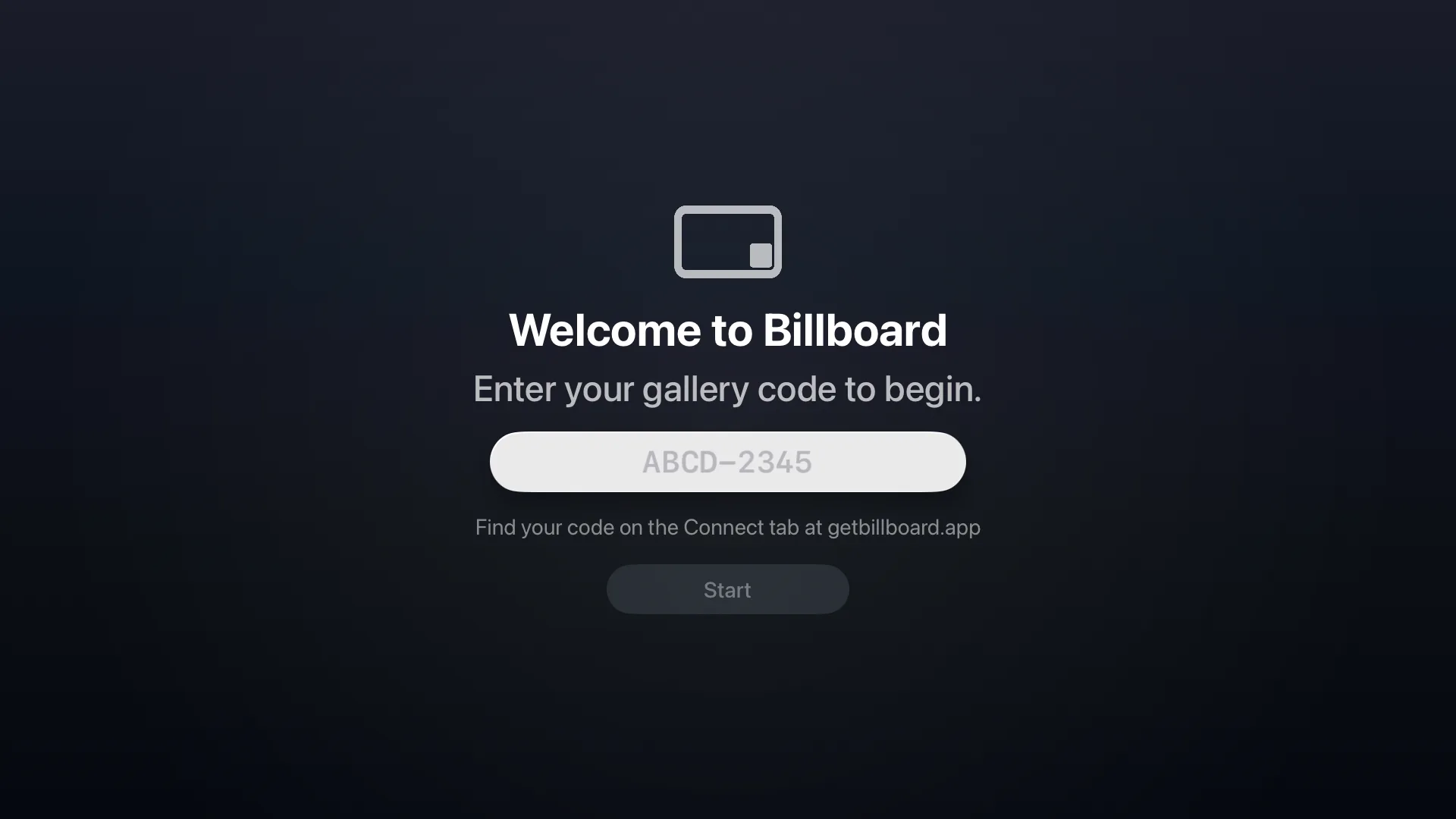
When the app opens, it shows a short code on screen, with getbillboard.app underneath.
In your dashboard, open the gallery, choose Connect, type that code into the box, and select Connect screen. The slideshow starts within a few seconds.
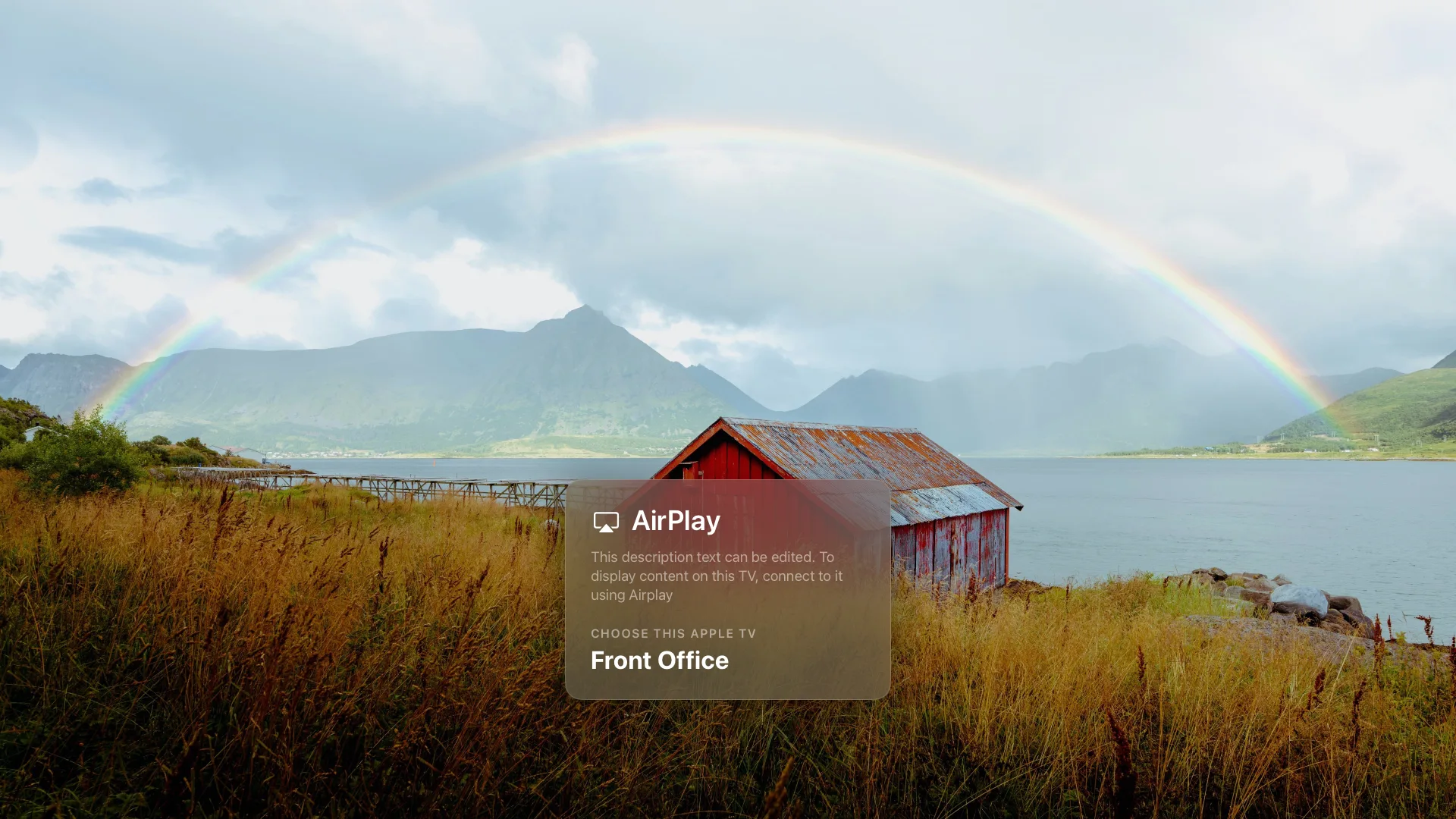
The AirPlay card sits over the top, drifting slowly so nothing burns in. Anyone in the room can still AirPlay to the display, just like they would with Apple's built-in Conference Mode.
No gallery yet? See Getting started for how to create one and connect your first screen.
The on-screen menu
Press Back on the Siri Remote and a menu slides in from the left. It's where the few on-device controls live:
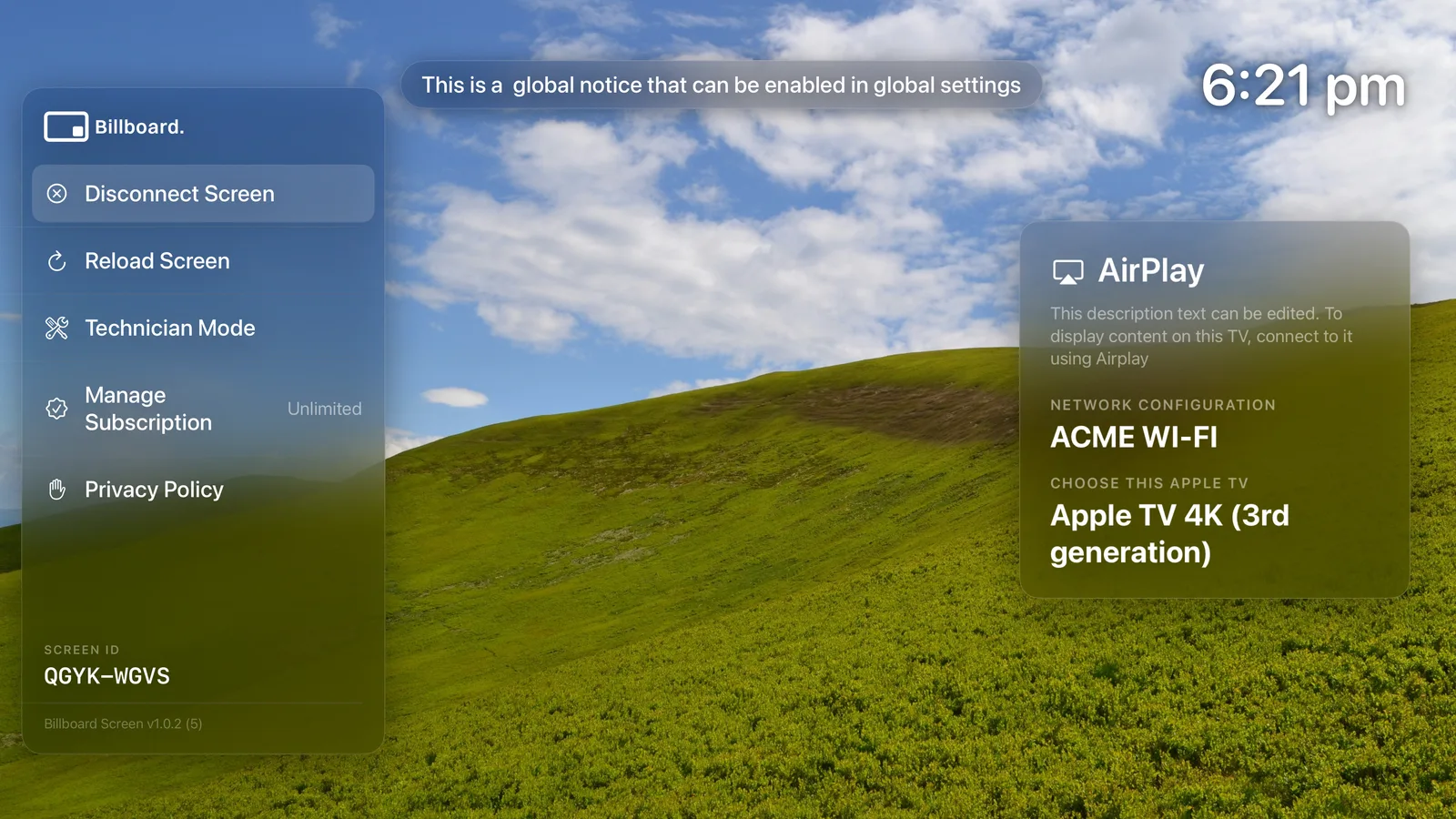
- Reload Screen pulls the latest content right now, instead of waiting for the next refresh. Handy when you've just changed something in the dashboard and want to see it straight away.
- Disconnect Screen unlinks this Apple TV from its gallery. To move a screen to a different gallery, disconnect it here and connect it again the same way.
- Manage Subscription (or Upgrade for more screens) opens your plan.
- Rotate Screen turns this one display, for a screen that was hung differently to the rest. It cycles through the mountings and back to Gallery, which follows whatever the gallery is set to, so there is always a way to undo it from the remote. See Screen orientation.
- Technician Mode turns on a diagnostics overlay for troubleshooting. See Technician mode.
- Privacy Policy opens the policy on screen.
The bottom of the menu shows this screen's ID and the app version, which is worth quoting if you ever email us. Press Back again to close the menu.
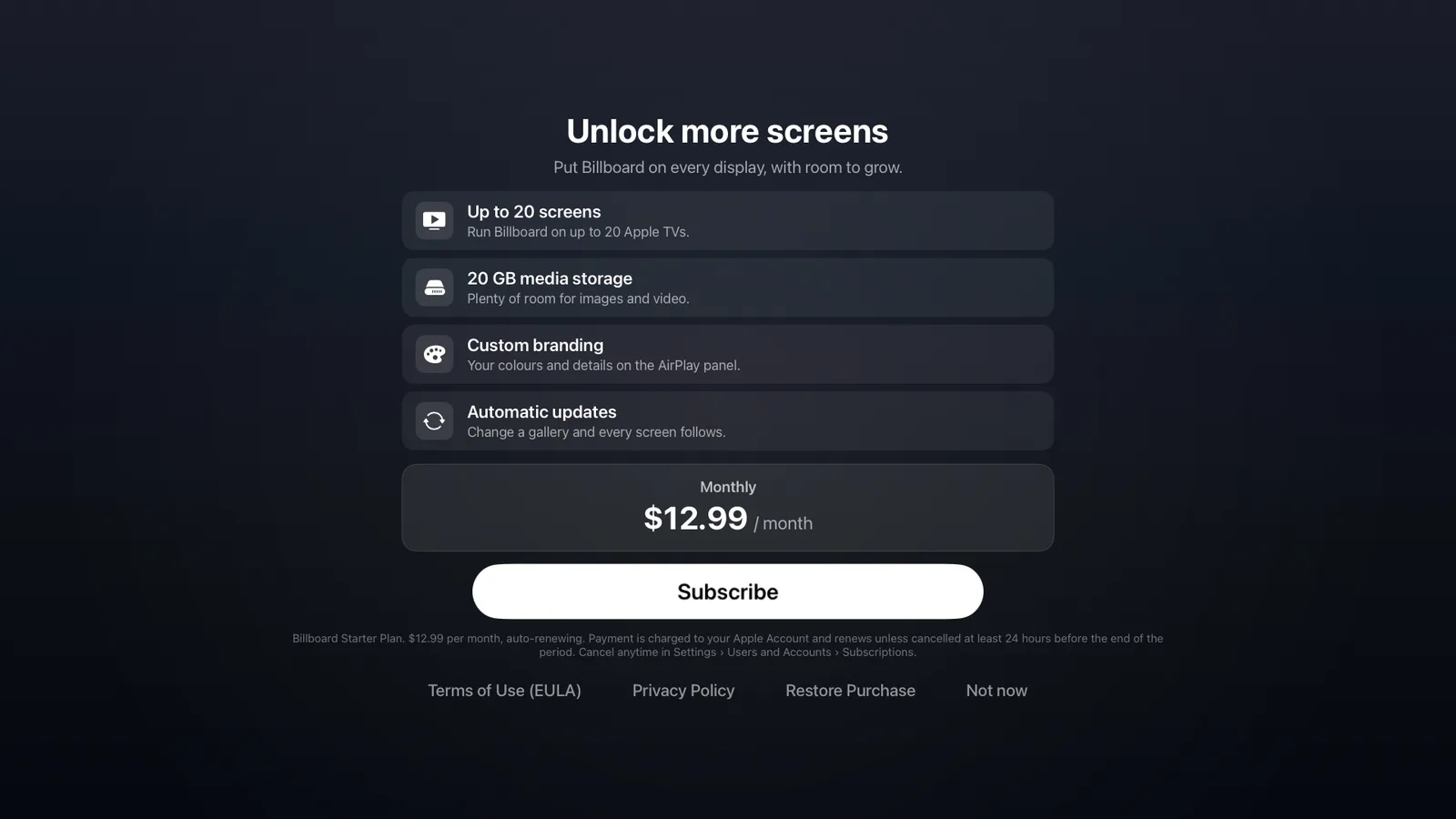
Choosing Upgrade for more screens opens the subscription screen — it shows what the Starter plan includes, the monthly price and renewal terms, and links to the full Terms of Use and Privacy Policy. You can subscribe right on the Apple TV.
The rest of the time you won't need any of this. Each screen refreshes on its own, on the schedule you set in the dashboard.
Exiting the app
From the slideshow, press Back three times: the first opens the menu, the second closes it, and the third exits to the Apple TV Home screen. Making you go through the menu to leave stops the display being closed by accident.
What lives in the dashboard
Almost everything else is set in the dashboard, not on the TV. How long each item shows, the AirPlay panel, an on-screen clock, notices. See Customise the display for the full set of controls. Your changes show up on screen by themselves at the next refresh.
Keep it running unattended
Billboard is built to be left on:
- It keeps the screen awake and resumes on its own after a restart.
- For a permanent display, turn off the Apple TV's screen saver and set it not to sleep.
- To stop the app being exited at all, lock the Apple TV with Single App Mode.
If something isn't working as expected, see Troubleshooting or email support@getbillboard.app.