Signing in and your account
Create an account, sign in with email or Google and Microsoft, reset a forgotten password, keep your organisation details current, and delete your account and data.
Last updated 26 July 2026
Your Billboard account is where you manage every gallery and screen. Sign in with an email and password, or with Google or Microsoft, whichever suits your organisation. This guide covers creating an account, signing in, recovering a password, keeping your details current, and deleting your account for good.
Create an account
- Go to getbillboard.app and select Get started free.
- Either continue with Google or Microsoft, or enter an email and password.
- If you signed up with email, check your inbox and select the confirmation link to activate the account.
You start on the Free plan. One active screen, no card required. You can add screens later when you're ready.
Work account vs personal: if your school or workplace uses Google Workspace or Microsoft 365, sign in with that account. It keeps access tied to your organisation's identity, which helps when staff change roles.
Password requirements
If you use email and password, your password needs at least 8 characters and has to include an uppercase letter, a lowercase letter, a number, and a symbol. We also reject passwords that have turned up in known data breaches, so pick something unique to Billboard.
Sign in
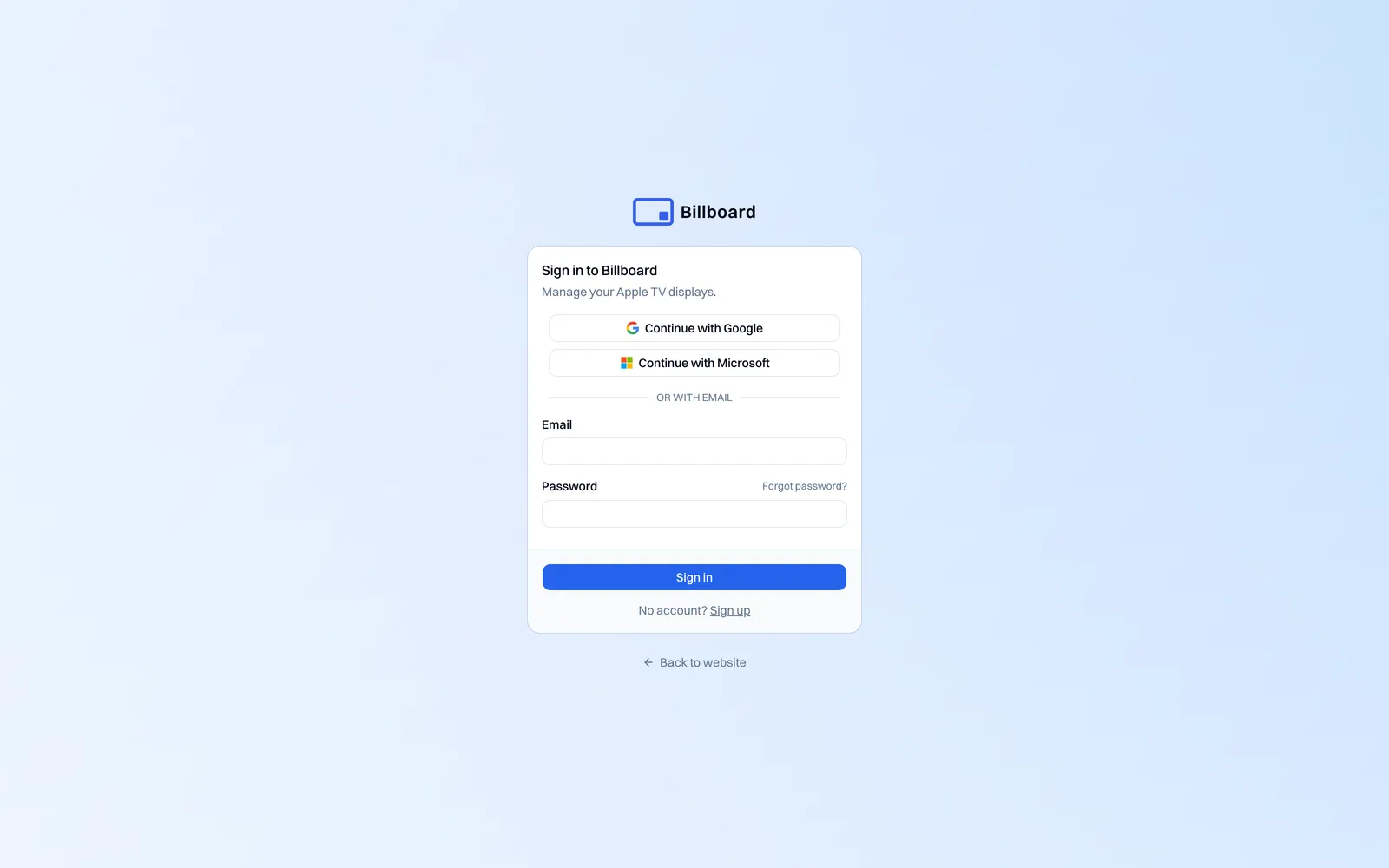
- Go to getbillboard.app and select Log in.
- Use the same method you signed up with: Google, Microsoft, or your email and password.
If you signed up with Google or Microsoft, always use that button. There's no separate password for the email address in that case.
Forgot your password
- On the login page, select Forgot password.
- Enter your email address. If an account exists, we send a reset link.
- Open the link and choose a new password that meets the requirements above.
The link is single-use and expires after a short time. If it's expired, request another. Signed up with Google or Microsoft? You don't have a Billboard password to reset, so sign in with that provider instead.
Your account menu
Once you're signed in, your account lives at the bottom-left of the dashboard, showing the email you're signed in as. Select it to:
- Update your details. Organisation name, contact name, phone, billing email and address. These appear on receipts and stay in sync with your billing profile.
- Sign out of this browser.
Keeping your billing email current matters most. That's where receipts and any billing notices go.
Delete your account
You can permanently delete your account and everything in it from your account details at the bottom-left of the dashboard. It removes your galleries, media and screen records for good, and if you only want to stop paying there are gentler options, so we've put the full detail in its own guide: Delete your account and data.
Where your data lives
Your account details are stored in our database in Sydney, and your uploaded media sits with our content provider in its Oceania region. Both are encrypted in transit and at rest. Payments, where applicable, are handled by our payment processor. See our Privacy Policy for the full detail.
Still stuck getting in? Email support@getbillboard.app from the address on the account and we'll help.